Friday, 6 January 2017

Fix Gear VR MKV playback no sound issue

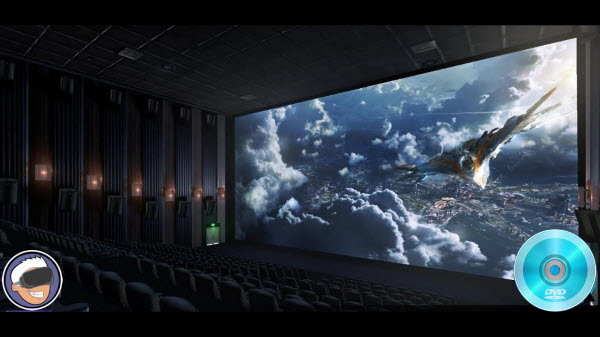
Samsung Gear VR is a mobile virtual reality device, which acts as the headset's display and processor. One advantage of Samsung Gear VR is that Samsung and Oculus has made it easy to import and watch your own local movies in virtual cinema mode. Though Gear VR claims to support MKV formats, somtimes we still encounter Gear VR MKV playback problems. Some VR movies in MKV play nicely while others won't play on your Gear VR or playback with no sound. So what's the matter? Check out the reason and solution for "No sound in Gear VR" here.


Why Some MKV Won't Work with Gear VR on Galaxy S7/S7 Edge/S6/Note7/5/4

Samsung Gear VR by default supports most common file formats including MKV, MP4, AVI, and FLV. When it comes to playing 3D videos, Gear VR requires either side-by-side or top-bottom (top down). However, a MKV is just a container format, holding video, audio, image or subtitle files in it. The video and audio files in different MKV files can be encoded with different codecs. For example, an MKV file with DTS audio can't be rendered on Gear VR. Fast research in the Internet has shown, that the problem was in audio codecs and the list of supported by Oculus audio formats. As it turned out AC3 and DTS audio are not supported by Oculus Video Players yet. If your MKV media contains AC3 or DTS audio, it will not work on Oculus player in Oculus Cinema. 

Three solutions to get MKV to play on Gear VR with proper audio

Soluton 1:  Encode MKV to Gear VR with VidCoder (Free but a little complex)

Basically you won't be able to play MKV file on Gear VR as it is, you will need to encode it to the supported format. Here comes a free solution that I chose for myself after browsing dozens of articles and forums.  

1. You will need to download and install on your computer VidCoder   – free but simple to use and very functional software.

2. Run the app and choose the file you want to encode.


3. Than choose the folder you want the encoded file to be saved and hit Settings button, we will create a preset so next time when you need to encode the movies the further steps would be unneeded.


Pay attention, that in case your movie has several languages, you need to choose and audio track you want to use. Settings screen has 4 tabs, but we will need just 2 of them.


In Picture tab, select Container MP4 and make sure no cropping would be done to the output file. That means that the picture will not be resized and there will no quality loss for the picture.

4. Now move to the Audio Tab

Choose AAC or MP3 as the codec and set Stereo as Mixdown (of course if you have fancy 5.1 earphones you can leave at as default).


5. Now hit Save button and enter the name of the template, so the next time you won't need to enter the settings again.

6. Now go back to the VidCoder home screen and press Encode button.


Now wait till the process is completed and copy the file from your computer to the phone.

That's it! By the way, this program works perfectly fine with 3D movies as well, and won't need to change the Settings to encode your 3D video, and then refer to the steps to play 3D on Gear VR

Soluton 2: Convert MKV to Gear VR with Dimo (Direct and effective)

To fix these problems, the effective and simple way is to change MKV to a fully compatible format with Gear VR. We've rated and ranked the best 3D Video Converter software on the market today. And Dimo Video Converter Ultimate is one of the top one which allows you to enable MKV with AC3 playable in Gear VR by converting MKV to Gear VR friendly MP4 video with with zero quality loss in stunning Top-bottom and Sidey-by-side 3D effect. Besides viewing MKV video on Gear VR, if you also wanna put other media files like MTS, MXF, VOB, 3D YouTube videos as well as DVD, Blu-ray movies to Gear VR for  playback.

It not only offers customized profile preset for VR devices like Gear VR, Oculus Rift and HTC Vive,  it allows you the tweak the video, audio parameters so that you can get a decent file as you want.  For those who are running on Mac OS X(Sierra, El Capitan included), you can get Dimo Video Converter Ultimate for Mac to achieve your goal. Here goes the step by step guide of MKV conversion for Gear VR on Windows 10/8,1/8/7/XP, mac workflow is as the same. 

Free Download Dimo Video Converter Ultimate:


Other Download:

  • Soft32 Download: http://dimo-video-converter-ultimate.soft32.com/
  • Findmysoft Download: http://dimo-video-converter.findmysoft.com/
  • Top4download: http://www.top4download.com/dimo ... imate/nsyrihrb.html
  • Softpedia Download: http://www.softpedia.com/get/Mul ... rter-Ultimate.shtml
  • Raritysoft Download: http://dimo-video-converter-ultimate.raritysoft.com/windows
  • Windows8downloads Download: https://www.windows8downloads.co ... -ultimate-fyqxbkug/
  • Stahuj Download: http://www.stahuj.centrum.cz/mul ... converter-ultimate/
  • OKD Download: http://www.owlkingdownload.com/i ... o-Recorders&det=550
  • OKD Download: http://www.owlkingdownload.com/i ... o-Recorders&det=550
  • HTML.it Download: http://download.html.it/software/dimo-video-converter-ultimate/
  • Instaluj Download: http://www.instaluj.cz/dimo-video-converter-ultimate
  • Windows7download: http://www.windows7download.com/ ... imate/bpphgnww.html

    Steps to Convert MKV with AC3 to Gear VR supported format

    1. Load MKV videos

    This application allows you to import your MKV files in two different ways. You can either click "Add file"  button to browse your local directory or you can simply choose to drag-and-drop your local MKV videos onto the program. Then, you can see these files will appearing on the left item tray as thumbnails.


    2. Choose the optimized format for Gear VR

    Open the "Select Format" drop-down format list and select SamsungGear from Device > VR  as the output format. The default setting will work great for your Gear VR.

    Tips: Click the "Settings" button and customize proper video/audio parameters if necessary. Video size, bitrate and fame rate are flexible and can be adjusted as you like. According to Oculus Support Center, we recommend using 1280x720 HD resolution to encode your videos. Higher resolutions will not provide any better quality, meaning you'll waste space and processing power. We also recommend using a higher bit rate than a typical web stream at that resolution, as the pixels in your video will be magnified on the phone's screen.

    The optimal bit rate is content dependent, and many videos can get by with less, but 5 Mb/s should give good quality. (Note: While H.264 is the recommended video coding, H.265 videos can also be played, Dimo Video Converter Ultimate can also encode any video to H.265 videos for watching)


    3. Add 3D Side-by-side effect

    Before start the MKV conversion for Gear VR, you can click Edit, turn to 3D tab and choose "Left-right" or "Top-Bottom" to create 3D SBS/TB video files. Or crop the source video so as to get the part you want, trim the ads part off, add watermark, adjust special effect, etc..


    4. Convert MKV to a Gear VR supported format

    Click "Start" on the main window. This Video Converter is highly efficient and it will finish the MKV to Gear VR conversion in minutes. After the conversion, you can transfer all the converted MKV files to watch on Gear VR.

    How to view 3D video files on your Gear VR via Galaxy Note 4/5 or Galaxy S7/S6?

    To view your SBS 3D video files on your Gear VR, there is an additional steps:

    1. On your MicroSD card file directory, navigate to Oculus > Movies > Your Movies

    2. Create a new folder within "Your Movies" and label it "3D"

    3. Import or move your side-by-side 3D videos into your newly created "3D" folder

    Once you have created your 3D content folder and imported compatible video files, insert your MicroSD card into your Galaxy Note 4 (if it isn't already), dock the phone in your Gear VR, and don the virtual reality headset. Then:

    1. Navigate to Oculus Cinema from the main menu
    2. Navigate to "My Videos" from the Oculus Cinema content library menu
    3. Select the 3D video you wish to view (if you followed the above steps it should have a "3D" label in the upper righthand corner)
    4. Choose the cinema mode to begin playback

    Now importing your own 3D content for viewing on Samsung Gear VR through your Galaxy Note 4 or Galaxy Note 5, Galaxy S6/S6 Edge/S6 Edge+. We'll be sharing more of these helpful tips and tricks in the coming days.

    Solution 3: Root your phone and add codecs for AC3 (Not commonly used)

    Following is the guide:

    1. Put the file media_codecs.xml in the folder system/etc
    2. Put the files libsac3d.so & libsomxac3d.so in the folder system/lib
    3. Set permissions to all 3 files: 0644 (owner: root/root)
    4. Reboot

    Above are three solutions for Gear VR playing MKV movie with AC3 audio. Select one of them and solve this "MKV no sound in Gear VR" issue. Of course, you can also try other VR players for Gear VR to enable MKV with AC3 playable in Gear VR, but remember to choose one that support MKV with AC3 or other 7.1 audio channels to avoid continuous issues.

    Free Download or Purchase Dimo Video Converter Ultimate:


    Contact us or leave a message at Facebook if you have any issues.

    Related Articles:
    Source: Three solutions to Play MKV on Gear VR with proper audio
  • Wednesday, 4 January 2017

    How can I Put DVD to Oculus Rift CV1 for Movie Enjoyment?

    Rift is unlike anything you've ever experienced. Whether you're stepping into your favorite game, watching an immersive VR movie, jumping to a destination on the other side of the world, or just spending time with friends in VR, you'll feel like you're really there. Imagine how wonderful if you can view your all DVD collections with VR headsets, well, come with me to get the magic recipe of making use of all your DVD movies with Oculus Rift CV1 for VR experience.


    In order to get DVD files onto Oculus Rift CV1, what you need to do is to rip DVD to Oculus Rift CV1 compatible videos (the Oculus Rift CV1 by default supports most common file formats including MP4, AVI, and FLV). Here Dimo Video Converter Ultimate is highly recommended to help you do the job.

    It can professionally rip DVD to Oculus Rift CV1 supported video format with fast speed and excellent output quality. In addition, this DVD ripping tool can also convert DVD to various popular video formats like AVI, MP4, WMV, MPEG, MOV, FLV, MKV, 3GP, etc. as well as rip DVD to optimized video for playback on iPad, iPod, iPhoneGear VR, Android tablet, Xbox 360/One/One S, PS3/PS4/PS4 Pro, Galaxy Tab and more. If you are a Mac user, you can turn to Rift CV1 DVD Ripper for Mac (OS Sierra included), which has the same function as the Windows version. Now download the right version and follow the tips below to finish your task.

    Free Download Dimo Video Converter Ultimate:


    Other Download: 

    How to rip DVD for playing on Oculus Rift CV1

    Step 1: Add DVD movies

    Launch the top DVD to Oculus Rift CV1 converter, add your DVD files by clicking the "Add DVD" icon. ISO and DVD folder are also supported.


    Step 2: Select a suitable output video format

    As we mentioned above, Oculus Rift CV1 supports MP4, AVI, FLV, etc format. You can click the "Select ormat" bar and choose one from "Format > Video" list. Or select customized profile for Oculus Rift offered by this top VR video converter from "Device > VR".

    Step 3. Select 3D mode

    Click "Edit" and in the video editor windows, turn to "3D" tab and then choose "Left-Right" effect.


    Step 3: Video encoding settings

    By clicking the "Settings" button, you can modify the video/audio parameters. For ripping DVD to view on Oculus Rift CV1, 2D/3D videos for the Cinema app should be in 720p (1280*720) with a higher bitrate around 5mbit/s. Higher resolutions for the specific format doesn't make the quality better but are a waste of power and battery life.


    Step 4: Start to rip DVD to Oculus Rift CV1

    The last step is to press the big "Start" button on the right to start converting DVD files to Oculus Rift CV1. The conversion takes a few minutes, after conversion, you can click "Open" to locate the output videos. Then you cantransfer and play videos on your Oculus Rift CV1 from your VR video player app.  

    Here is the list of Oculus Rift video players that you could find. If we missed any, do contact us and we’ll add it.

    1. Total Cinema 360 Oculus Player

    This player has a good customer support, followed by a lot of features at which you can take a peek on their official website. Apart from watching video in full 360 degrees, it lets you experience videos on the web from both desktop and mobile browsers. Download here.

    2.  LiveViewRift

    Say hello to one of the most popular DK2 video players. It is on top of the list for many people, and for a good reason. It perform superbly, has a solid tracking, and has no performance issues. It is my second favourite Oculus Rift video player. Download here.

    3. VR Player

    VR Player is a known program amongst Oculus Rift veterans. Although I would not recommend using it with DK2 (as it has some performance issues), it is one of the best video players available for the first Oculus Rift development kit. Download here.

    4. CINEVEO

    CINEVEO is a bit of a controversial app. Its creator, Sven Kohn, had some dishonorable ways to market his program, as well as having a bad customer support. Due to these incidents, CINEVEO has been blacklisted in vrapps & EnterTheRift.fr. You can read more about the incident here on reddit. Price is $9.99. 

    5. MaxVR

    MaxVR does everything that you ask him to. There are no complications with this program. Although some features might be missing, it can be seen as something positive. It is one of the most simplistic players that doesn’t confuse their users. Download here. Price is $9.99.

    6. RiftMax

    Riftmax has also its own spin to all these video players. Apart from watching movies and everything you want, you are able to invite friends or join parties, like in Convrge. To make the best of this social interaction, you can use your spotlight to sing some karaoke to others. Download here.

    7. Kolor Eyes

    This one has a lot of functions to offer. Apart from watching 360 videos, you can experience movies online, and have an opportunity to connect your Apple or Android devices with your VR headset (GearVR implied). More informationhere.

    8. Whirligig

    Whirligig has been praised for its smoothness. No judder is a big plus, especially when watching movies for hours on end. Some people even have named Whirligig as one of the best Oculus Rift video players available. Download here.

    9. Virtual Desktop

    Finally, this one is my favourite. Although LiveViewRift is pretty close in terms of first place, I prefer this one over anything else. Virtual Desktop has all the necessary functions, performs well and lets you watch Youtube 360 videos with an Oculus Rift (click for guide). Download here.

    10. VorpX

    With the latest updates, vorpX is not only making itself one of the leading VR injection programs, but adds extra functionalities like video player options to user menu. Apart from just watching regular movies, you can now enjoy 3D movies, as long as they are in VLC and MPC-HC format. Download here. Price is $39.

    11. VLCRiftPlayer

    VLCRiftPlayer is a simple program that does its job well. It is also one of the few video players for Oculus Rift that lets you add subtitles since they're built directly into VLC. Download here.

    Free Download or Purchase Dimo Video Converter Ultimate:


    Contact us or leave a message at Facebook if you have any issues.

    Related Articles: